There’s a great WordPress plugin to present your WordPress archives on a seperate WordPress Page. It’s called Smart Archives. If you look at the Archives page on my blog you’ll see what this plugin does for you.
With most WordPress themes you can present your archives in a widget in a sidebar on your blog. However, usually a theme’s archive widget displays months in a decsending chronological order. Once clicked on a specific month, the blog is refreshed with just those blog posts from that month.

What is Smart Archives? Smart Archives presents your archives on a single WordPress Page where you can list the year, month and post titles in descending chronological order. The image below is from my blog’s Archive page:

This allows your blog reader to click once on the Archive page and immediately see your archives titles only with links to each blog post. This makes it much easier to scan your archives. In most, if not all browsers, your readers could then use Ctrl-F (or whatever browser key is the search page key) to search the archives page for a specific word or words.
One caveat with this plugin is that you can’t run php in a WordPress Page. So you have to download a plugin that allows you to run php in a page. I used this one with success – Exec-PHP.
Installation
Smart Archives is one file, smartarchives.php. Place that file in the root of your wordpress plugins folder, activate it and away you go. Make sure you install the Exec-PHP plugin as well.
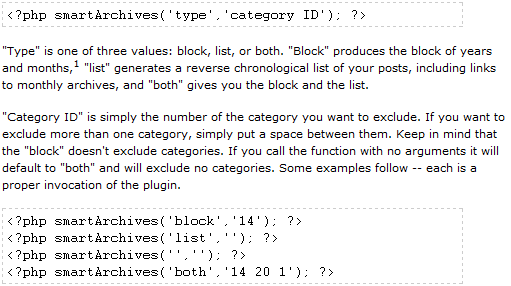
Here are some other choices and explanations on what the function will display:
“Type” is one of three values: block, list, or both. “Block” produces the block of years and months,1 “list” generates a reverse chronological list of your posts, including links to monthly archives, and “both” gives you the block and the list.
“Category ID” is simply the number of the category you want to exclude. If you want to exclude more than one category, simply put a space between them. Keep in mind that the “block” doesn’t exclude categories. If you call the function with no arguments it will default to “both” and will exclude no categories. Some examples follow — each is a proper invocation of the plugin.
Download: Smart Archives and Exec-PHP
That’s It!!
I’d love if you could tell me how I figure out the category ID’s of each specific category?
I only want one category to show up in my archive page, but I have many categories to block I guess.
Thanks you are the first person to tell me I need to download a separate plug in to post my archives to a wp page. I was scratching my head over how to do that!