
Photo by cinefilo
In my first article on Setting Up WordPress On Your PC Using XAMPP, I talked about how to install and start using the freely available xampplite to run WordPress on your local PC’s hard drive. In this article I’ll quickly walk through setting up another popular package of software that will do the same thing – EasyPHP.
Initially, when I first discovered how to run WordPress on my PC, I started using EasyPHP, but I had switched to xampplite for a while to see how that felt. After working with both I have to say that EasyPHP runs a bit faster than xampplite. There seems to be a bit of delay with every task, when I’m working with xampplite. It’s a bit slower and annoying enough to make me want to spend most of my time using EasyPHP.
You can get the last version of EasyPHP from SourceForge.net. Download it here. The version I have is EasyPHP2.0b1.
EasyPHP has a Windows install program. By default, you install it in C:\Program Files\EasyPHP2.0b1. There is a subdirectory that you install WordPress in – C:\Program Files\EasyPHP2.0b1\www.
I extract WordPress into that folder so it’s files and folders are actually in the root of C:\Program Files\EasyPHP2.0b1\www. Some folks extract the files to C:\Program Files\EasyPHP2.0b1\www\wordpress.
The difference between the two is when you go to run WordPress locally you’ll type in http://localhost for the way I use it and if it’s in the wordpress folder you’d browse to http://localhost/wordpress. For now, I only use EasyPHP for running a local version of WordPress so I’ll stick with my current setup. See screen shot below:

Here’s the lowdown and I’ll use my setup as an example. Some of this is the same as my first post about setting up WordPress locally:
- Download EasyPHP2.0b1 from here.
- Run the setup and install and accept all the defaults if they apply to you. It gets installed here for Windows XP – C:\Program Files\EasyPHP2.0b1
- EasyPHP will put an icon in your Windows XP Taskbar. It should start the necessary services automatically – Apache web server and MySql database.
- Right-click on the EasyPHP icon in the Taskbar and select Administration. Feel free to select any other menu choices if you’d like to see what they do or don’t do. But for now we need to create a database.
- When your browser loads the Administration page, click on MySql Manager.
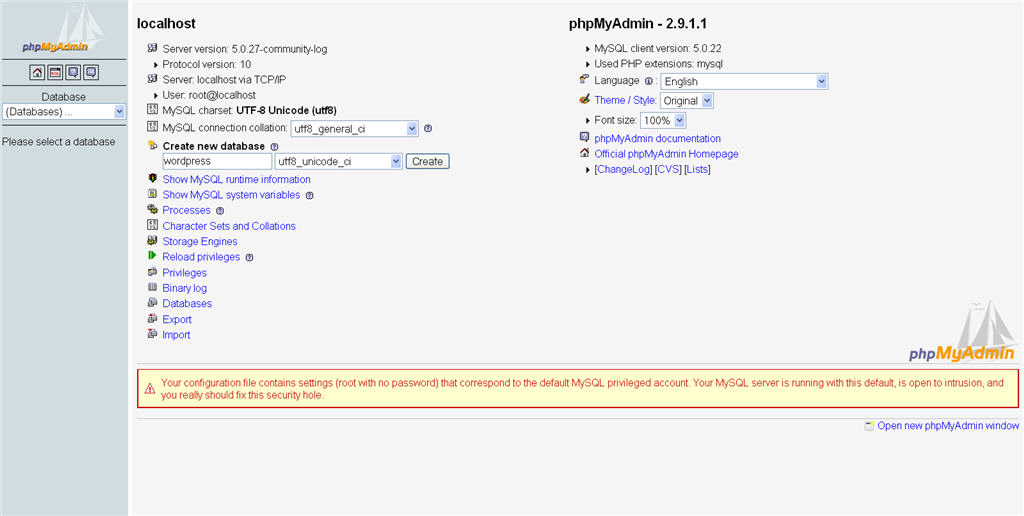
- On the following page create the database wordpress, select the collation shown in the image below and click on the “Create” button. After the database is created you can close that browser window.
 Click image for larger view
 - Download WordPress from here.
- Extract WordPress here C:\Program Files\EasyPHP2.0b1\www. Note: Again, I make sure the files and folders are right under the www folder and not the …www\wordpress folder. But you can certianly do that if you want.
- Copy the file C:\Program Files\EasyPHP 2.0b1\www\wp-config-sample.php to C:\Program Files\EasyPHP 2.0b1\www\wp-config.php
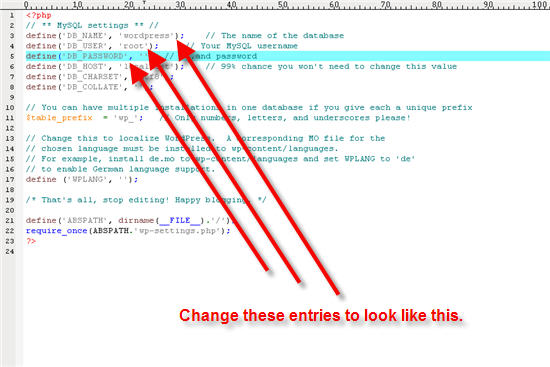
- Edit wp-config.php and change the DB_NAME to ‘wordpress’, the DB_USER to ‘root’ and clear the DB_PASSWORD to ”. Save it. The wp-config.php file should look like this:

- Run http://localhost
- At this point if everything is groovy, you’ll see the WordPress Welcome screen.
- Provide the title of the blog. For this example I’ll use My WordPress Blog.
- Provde your email address and uncheck the “Allow my blog to appear…” since we’re running this locally on our PCs and click Install WordPress.
- Again, if everything worked correctly you’ll see a success page.
- Write down the password that was generated along with the admin login. Click the Login link and you’ll be taken to the WordPress login page.

At this point you can now work with WordPress locally on your PC.
[techtags: EasyPHP, WordPress, Apache, MySql]
Thanks for the great info, worked a treat, out of the box….lifesaver…
Easy PHPeasy..:-)
Bill,
I prefer EasyPHP too and I ended up writing a free user guide on “How To Develop & Test Blogs And Websites On Your PC”. I include ample screenshots to help out with the installation.
Anyone interested can download a copy for free here:
http://klikr.net/local-test/
Hi, first i want to say thank you for the article. I have a question.. After we finish the WordPress, what, where and how to upload them to web site hosting?. Thanks again:)
1. You register a domain name with a domain registrar.
2. You pick a hosting site like HostGator.
3. You use cpanel to automagically install WordPress.
4. You recreate what you created on your PC at your hosting account.
Waw, that’s easy :). I think i can do that. Thank you very much!
Phoenixs last blog post..Forex-Affiliate.Com
Those who want to start their own blog will find this post very helpful. However, word press is more complicated that blogspot.
“Bill Stevens December 7, 2008 at 10:31 pm
1. You register a domain name with a domain registrar.
2. You pick a hosting site like HostGator.
3. You use cpanel to automagically install WordPress.
4. You recreate what you created on your PC at your hosting account.”
I dont understand #4. How do I “sync” my WordPress on my computer to that on the web host?
After struggling with WAMP, EasyPHP, and the EasyPHP WordPress module, this finally worked! Thanks so much 🙂
Sam » Great to hear. Thanks.