It’s been said, “Not owning a computer is the most secure computer.” While that’s true, we need to take steps to keep our computer secure.
As a general rule, I like to shut my computer off when I’m away from it for long periods of time. That includes going out for the day or night, as well as going to sleep. Sometimes it’s hard to remember to shut it off. So in this article I’ll show you a way to shut your Windows XP computer off automatically without some kind of external shutdown clock program for XP.
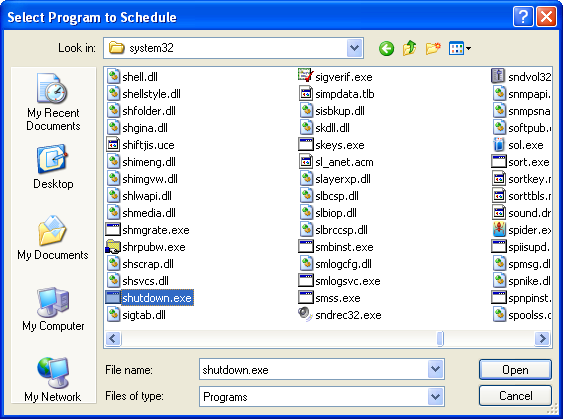
Windows XP comes with a program called shutdown.exe and is located in your system32 folder which typically resides under C:\Windows or the main folder where Windows XP was installed.
So let’s set this up quickly:
1. Go to “Start->Control Panel” and click on “Scheduled Tasks” if you’re in “Classic View”. If you’re not in “Classic View” you are probably in “Category View”. In “Category View” you’ll click on “Performance and Maintenance”. Then click on “Scheduled Tasks”. You’ll see the following screen. Double-click the “Add Scheduled Task” icon.

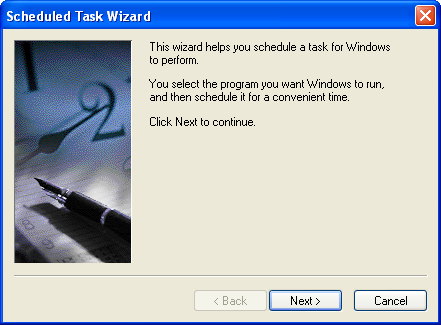
2. Click “Next” on the “Schedule Task Wizard” screen (below).
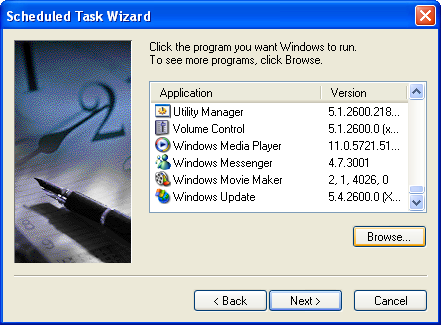
3. Click the “Browse” button on the next screen that lists the different applications you can select from (below).

4. Browse to C:\Windows\system32 and select the program shutdown.exe (below).

5. After selecting shutdown.exe, select “Daily” for “Perform this task:” (below).
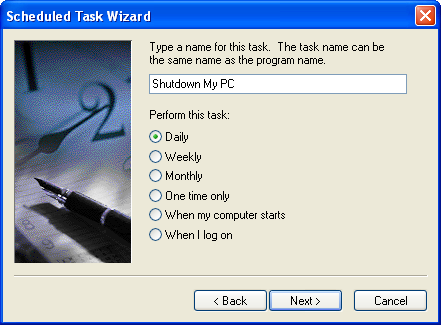

6. I sleep during the night. That’s why I shut my PC down automagically at 3:00am (below). But, I run some jobs automatically at 1:00am – virus scan and spyware scan, which will be part of a future article. Feel free to adjust this time to fit your schedule.

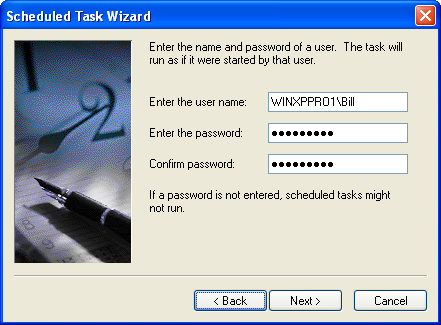
7. You’ll be asked to provide a user name and password that will be used to run this task (below). Warning: If you don’t know your password, that ok. You can add or change it later. If you don’t provide the correct password, you’ll get an error screen after this step. However, you’ll still be able to finish this process.

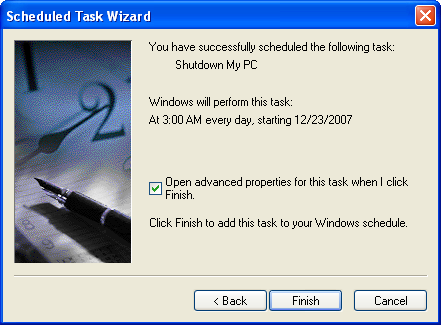
8. At this point you’ve successfully added a new schedule task to run at 3:00am. However, let’s click on the “Open advanced properties fro this task when I click Finish” checkbox and click “Finish” so we can add some command line parameters to shutdown.exe (below).

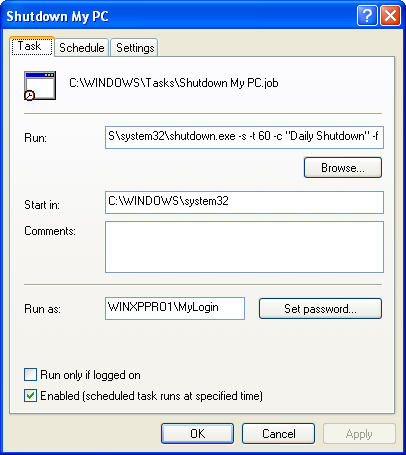
9. You’ll be presented with the following screen.

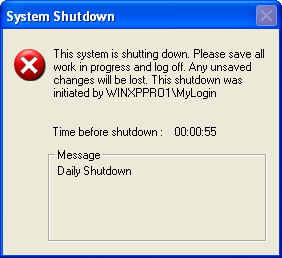
10. Add the following command line parameters as seen below and here – C:\Windows\system32\shutdown.exe -s -t 60 -c “Daily Shutdown” -f. The -s stands for “Shutdown the computer”. The -t 60 stands for “Set timeout for shudown to xx seconds. Feel free to adjust that. You never know when you’re going to be working at 3:00am, so it’s nice to have 60 seconds to prepare for the shutdown. The -c stands “Shutdown comment” which shows up on the screen when the PC is shutting down. And finally the -f stands for “Forces running applications to close without warning”.

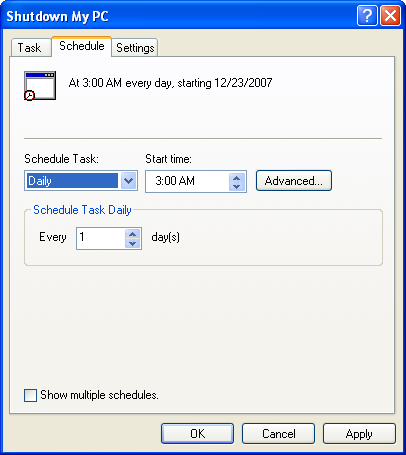
11. There’s nothing to change on “Schedule” tab. However, feel free to adjust anything that pertains to your work environment or routine.

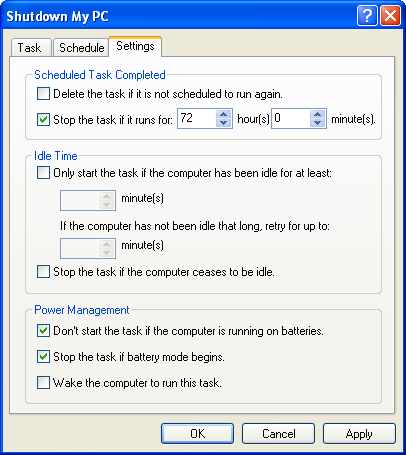
12. I also leave the “Settings” tab alone. Again, change what you need to or experiment what suits your work style.

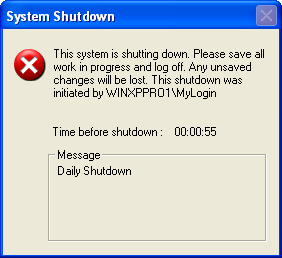
13. This is the final screen (below) that pops up when the task runs. You will have 60 seconds to close applications if you need to.
That’s it!! Now you can rest assured your PC is shut down and secure while you’re away from your PC.
I tried to set this particular scheduled task as per the instructions but as soon as i click finish & exit the Scheduled Task Wizard I get an error :
A new task has been created but may not run because the account information could not be set.
the specific error is : 0X80070005. Access is denied.
can anyone please please help me?? i really need this task scheduled 🙁 my system runs Windows XP SP 3.
Thanks for this article! I’m a 15 year old and I am working on setting up my home network which so far has gone pretty smoothly. I set up wireless printing and network drives. But I needed the computer to shut off after a certain time so it wouldn’t waste power. This was pretty easy for me actually. But if My mom did this, she would be all over the place……….
Big help. Thank you!
Vin » Good to hear Vin.
I have tried and re-tried your above process for shutting down my PC’s. In this particular case, it’s Windows XP, SP3. Following your directions to the tee (“http://www.thespinningdonut.com/how-to-automatically-shut-down-your-windows-xp-computer/”), all that happens is a flash of a “DOS” screen, and then nothing? This same thing happens with my Windows Vista. Has something changed since you wrote these articles? Thanks for your time and help. (Screen below)
C:\>cd windows
C:\WINDOWS>cd system32
C:\WINDOWS\system32>C:\WINDOWS\system32\shutdown.exe -s -t 60 -c “Daily Shutdown
” -f
Usage: C:\WINDOWS\system32\shutdown.exe [-i | -l | -s | -r | -a] [-f] [-m \\comp
utername] [-t xx] [-c “comment”] [-d up:xx:yy]
No args Display this message (same as -?)
-i Display GUI interface, must be the first option
-l Log off (cannot be used with -m option)
-s Shutdown the computer
-r Shutdown and restart the computer
-a Abort a system shutdown
-m \\computername Remote computer to shutdown/restart/abort
-t xx Set timeout for shutdown to xx seconds
-c “comment” Shutdown comment (maximum of 127 characters)
-f Forces running applications to close without war
ning
-d [u][p]:xx:yy The reason code for the shutdown
u is the user code
p is a planned shutdown code
xx is the major reason code (positive integer le
ss than 256)
yy is the minor reason code (positive integer le
ss than 65536)
Gary G. Nyman, Sr. » Hi Gary, That rings a bell, I just can’t remember why it would happen. Have you looked at this link for Vista: How To Automatically Shutdown Your Windows Vista Computer
Also, you might want to take a look at your system event log file, maybe there is something getting recorded in there when the command runs. The event log might show more info for why it’s not running successfully.
Nothing has changed since the articles were written. It should work with XP at least. See the link above for Vista and there’s even one for Windows 7 you can find in the popular posts list on the sidebar.
Let us know.
Gary G. Nyman, Sr…. Gary, I would suggest trouble shooting from a command prompt (Start>run>cmd). Try entering the shutdown.exe command alone and then add each argument one at a time to which one is the culprit. I would also try enclosing the comment in two sets of quotes to see if that helps. I have had to do this in the past with comment strings that include a space. Let us know how you make out.
C:\WINDOWS\system32>C:\WINDOWS\system32\shutdown.exe -s
The above works just fine, both from “cmd” and Task Scheduler. Thanks ever so much for the prompt response and your help. I should probably note that the person “requesting” the shutdown is my login, with a password, which is required when I sey up the task. I have Administrative priviliges.
A bit of clarification on the autoshutdown I posted earlier (C:\WINDOWS\system32>C:\WINDOWS\system32\shutdown.exe -s)
The above works just fine, both from “cmd” and Task Scheduler. I ran the program from Task Scheduler as “Run Program” and it worked, however it is not working by itself at the scheduled time, 2:00am. I’m going to add “-f” and see if that will do it.
Gary
Gary » Cool beans. Good luck.
Thank You! Thank You! Thank You! That “-f” saved my day.
P.S.: If you ever need to abort the shutdown operation just open a Run… prompt (Win + R), type “shutdown -a” and press ENTER.
John » Glad to hear it John.
John » Good add.
I’m having the same issue as Andrea and Gary, and I suspect it’s because my user doesn’t have Admin privileges. Can someone confirm?
I also had the same issue as Andrea, Gary, and Jenny. I got it to work by replacing “-s” with “/s” and so on.
Kris » Thanks Kris, great to hear.
Very good. Does it work in Windows 7?
Saraiva » Yes – How To Automatically Shut Down Your Windows 7 Computer
Nice article… not that I leave my system on for long periods unwatched, If I ever need to I now know how to get it to turn itself off… You wouldnt have a tip to get it to turn itself on….lol
This would have been useful if only I kept Windows XP running on my laptop, any idea if it is possible to to the same with Windows Seven? or I will need a specific software for this purpose?
Hey thanks dude! That was great and it worked perfectly.
Very good article! I can´t seem to find that “Performance and Maintenance”-button, though. I´m using a Danish computer and I´m working hard to figure out what the Danish expression would be. A little embarassing!
Most BIOS will have the option of tuning your computer ON. Press F2 while your computer is booting and it will enter “setup”. Browse around in there and you can find the setting to automatically turn it on.
James » Thanks James, excellent tip.
Is there any way to save it onto the settings or anything more permanent? I work at a library and need this program but they all get wiped every night so it’s impossible for patrons to save personal information. the down side to that is that I can’t save this onto the desktops. Help?
Elizabeth » Hi Elizabeth. Does that mean you do or don’t control the desktops at the library?
I think I found the reason, why some people here experience troubles using your command. It is the Blank within the Comment!
The Solution is: -c “DailyShutdown” (without any blank!)
Don’t know, whether this is a bug within shutdown.exe.
I am using XP Prof. SP 3.
Da Oansa » Good find Da. I’ll have to test this.
the above information is really very helpfull..but some may be facing a problem, that nothing happen only a DOS screen appears.
Solution to that is:
just remove the space between the words (instead place underscore) in comment.
It should be like this:
C:\WINDOWS\system32\shutdown.exe -s -t 60 -c “_Daily_Shutdown_” -f
if you are having the problem about admin previliges just check the check box “Run only if i logged on” in properties of the sheduled task.
Sarfraz » Thanks Sarfraz.
Hi,
I want a scheduled auto log off when PC is lock in windows XP SP3.
Kindly suggest.
Thanks,
Saim
Do we have any external applications which can be used to shut down a pc automatically?
My XP computers are auto logon with administrated rights (no password) and because of this I too get the dreaded 0x80070005 access error when I try this. The following worked for me on 2 different OEM XP pro computers.
Click Start, Run and type Gpedit.msc to bring up the Group Policy editor. In the Local Computer Policy list, expand Computer Configuration, Windows Settings, Security Settings, Local Policies, Security Options, then double click “Accounts: Limit local account use of blank passwords to console logon only”
Select “Disable” and Apply.
This will now allow scheduled program access when you add any new programs in scheduled tasks.
Here is my disclaimer; Although this worked for me I am not responsible for its effectiveness or security on anyone else’s systems. The setting change appears to me to be innocuous for all my intents and purposes.
Try it if you are like me (and 50% of the rest of the world) and have a system that you want to just skip logon and start windows when you turn the damn thing on. Cheers.
BruzeW » Good stuff, thanks.
Thankyou for this post and video on youtube. I was very annoyed when i wake up that my pc is running, now before i watch movie in evening in bed, i can put auto shutdown to turn off my pc:) Also -f command helps if i have many videos in row and when i’m asleep my videos are still playing. Thanks again!!!
it works thank you.
Sorry to say that your line C:\Windows\system32\shutdown.exe -s -t 60 -c “Daily Shutdown” -f.does not work but as i replaced“Daily Shutdown” with “Daily Shutdown” .it started to work.Note that error is ” .please correct it for any new comer.Thanks